Using Claude Code to Diagnose and Fix Windows System Issues
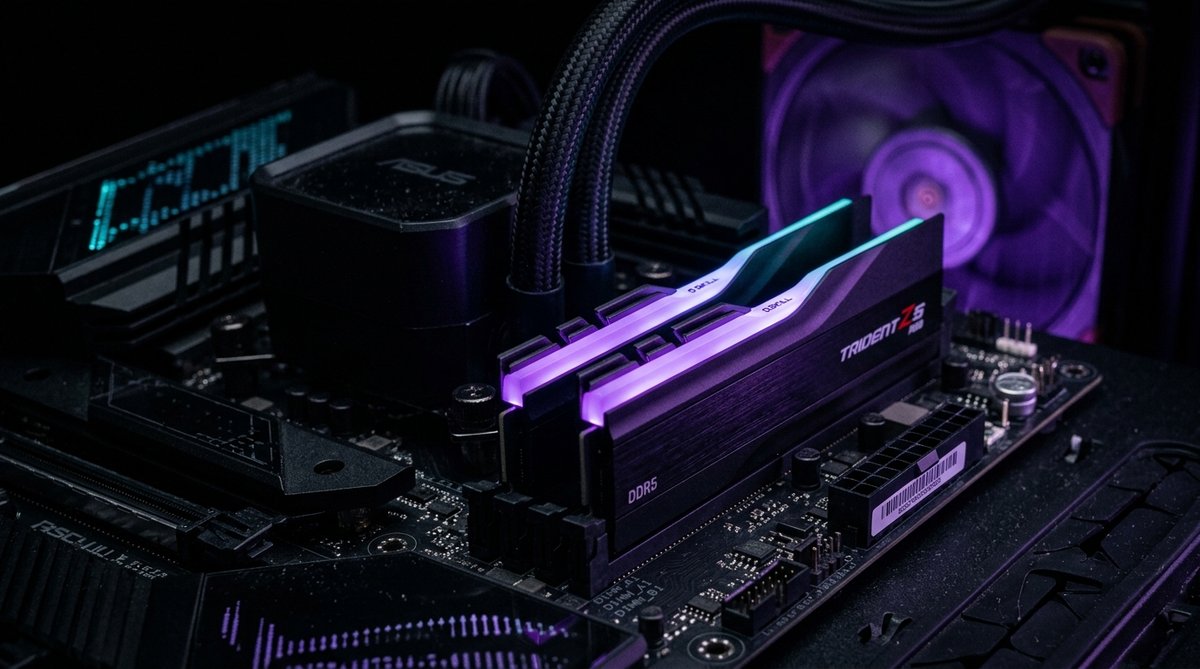
Claude Code isn't just a coding assistant — and honestly, using it only for code feels like buying a Swiss army knife and only using the toothpick. With access to your terminal and Chrome browser tools, it can scan Windows event logs, identify hardware conflicts, parse BSOD crash dumps, and walk you through fixes — all autonomously. Here's how I used it to diagnose a RAM timing mismatch that Windows couldn't surface on its own, and why it's now my go-to system troubleshooter.
Why Claude Code for System Diagnostics?
Most developers use Claude Code for writing code, refactoring, and debugging software. But its real superpower is autonomous tool chaining — it can execute terminal commands, read the output, decide what to check next, and keep going without you babysitting it. That's basically the entire workflow of system diagnostics: run a command, read, decide, repeat.
Compare that to traditional Windows troubleshooting: dig through Event Viewer, google cryptic error codes, test hypotheses one at a time, and hope you find the right Stack Overflow thread. Claude Code collapses all of that into a single conversation. You describe the symptom, grant it terminal access, and go make coffee. Seriously — my most impressive diagnostic session happened while I was in the kitchen.
What Claude Code Can Diagnose
With terminal access on Windows (via PowerShell or CMD), Claude Code can inspect virtually everything the OS exposes:
- Windows Event Logs — Application, System, Security, and Setup logs via
Get-WinEventorwevtutil - Hardware information — CPU, RAM, disk, GPU details via
Get-CimInstance,wmic, andsysteminfo - Driver issues — driver versions, conflicts, and failed installations via
driverqueryand Event Viewer - BSOD crash dumps — minidump analysis to identify the faulting driver or module
- Disk health — SMART data, partition layout, file system errors via
Get-PhysicalDiskandchkdsk - Network diagnostics — adapter configuration, DNS resolution, route tables, firewall rules
- Performance bottlenecks — process CPU/memory usage, startup impact, service status
- Registry analysis — checking specific keys for misconfigurations (read-only, no modifications)
Case Study: Diagnosing a RAM Timing Mismatch
Here's a real example of Claude Code solving a hardware issue that traditional troubleshooting tools missed entirely.
The Symptoms
My Windows 11 workstation was being weird. Not broken — weird. Occasional application crashes, a rare BSOD under heavy load, and this persistent sluggishness that didn't match a machine with a 14900K and 64GB of DDR5. Task Manager showed nothing unusual. I had two different kits of DDR5 from different manufacturers — I knew mixing RAM wasn't ideal, but with XMP disabled I figured it would be fine. Narrator: it was not fine.
Letting Claude Code Investigate
I opened Claude Code and typed: "My PC has been unstable lately with random crashes. I have mixed RAM sticks. Can you investigate?"
What happened next was genuinely impressive. Without any further input from me, Claude Code kicked off a systematic investigation, running commands in sequence and using each result to decide what to check next:
# Step 1: Check system hardware overview
systeminfo

# Step 2: Get detailed RAM information
Get-CimInstance Win32_PhysicalMemory | Format-Table BankLabel, Capacity, Speed, ConfiguredClockSpeed, Manufacturer, PartNumber

# Step 3: Check Windows System event log for memory-related errors
Get-WinEvent -FilterHashtable @{LogName='System'; Level=2,3} -MaxEvents 100 | Where-Object { $_.Message -match 'memory|WHEA|hardware' }

# Step 4: Check for WHEA (Windows Hardware Error Architecture) events
Get-WinEvent -FilterHashtable @{LogName='System'; ProviderName='Microsoft-Windows-WHEA-Logger'} -MaxEvents 50

# Step 5: Deep dive into RAM timing details
wmic memorychip get BankLabel, Capacity, Speed, ConfiguredClockSpeed, DataWidth, TotalWidth, FormFactor, MemoryType
The Discovery
And here's where it got interesting. Claude Code found the culprit buried in the Win32_PhysicalMemory output — something I'd looked at before but completely missed. The two RAM kits had different native CAS latency timings:
- Kit A (2x 16GB): Corsair Vengeance DDR5-6000 at CL36
- Kit B (2x 16GB): Corsair Vengeance DDR5-6000 at CL38
Both kits were Corsair Vengeance rated for 6000 MT/s, and the BIOS was running them both at 6000 MHz. The clock speed matched, but the CAS latency didn't. The CL36 kit was being forced to run at its native CL36 timing, while the CL38 kit was also running at CL36 — tighter than its rated spec. This caused intermittent timing violations under heavy memory load. The kind of bug that only shows up when you're doing something important.
But here's what really sold me on the approach: Claude Code didn't just find the mismatch — it correlated it with WHEA correctable hardware error events in the System log. These events had been logged with increasing frequency over the past two weeks, all pointing to memory subsystem errors. Windows was silently correcting these errors at the hardware level, but each correction introduced micro-latency that accumulated into the sluggishness I was experiencing. Two data sources, one root cause. That's hard to do manually.
The Fix
Claude Code recommended a specific fix: set the memory timing to CL38 for all sticks in the BIOS, matching the slower kit's native timing. The reasoning was clear:
- CL38 is within spec for both kits (Kit A can run at CL38 easily, Kit B requires CL38)
- CL36 is out of spec for Kit B, causing the timing violations
- The performance difference between CL36 and CL38 at 6000 MT/s is negligible in real-world workloads (less than 1% in most benchmarks)
- Stability matters far more than marginal latency improvements
After entering the BIOS and manually setting the CAS latency to 38 for all DIMM slots, the WHEA errors stopped completely. The system has been rock-stable since, with zero crashes over the following weeks.
What Made This Impressive
Let's be honest: running wmic memorychip isn't rocket science — any sysadmin could do that. What made Claude Code valuable was the pattern matching across multiple data sources that no single tool provides:
- It noticed the CL mismatch in hardware data
- It correlated that with WHEA events in the event log
- It understood that the BIOS was using the tighter timing by default
- It knew that CL38 was the safe common denominator
- It explained the tradeoff (negligible performance loss vs. full stability)
This entire investigation took about 3 minutes. I wasn't even at my desk for most of it. A manual investigation would have taken an hour minimum, and honestly? I'd looked at that Win32_PhysicalMemory output before and missed the CL mismatch entirely. Sometimes you need a second pair of eyes — even if those eyes belong to an LLM.
How to Use Claude Code for System Diagnostics
Here's how to set up and use Claude Code as a system diagnostic tool on Windows.
Step 1: Grant Terminal Access
Claude Code needs permission to run shell commands. When you start a diagnostic session, it will request Bash tool access. Allow it — system diagnostics require reading event logs, querying hardware, and running system utilities. For read-only diagnostics, this is safe.
If you want full diagnostic capabilities, run your terminal as Administrator before launching Claude Code. Some commands like Get-WinEvent for Security logs and chkdsk require elevated privileges. Pro tip: I keep a separate Windows Terminal profile called "Claude Admin" just for these sessions.
Step 2: Describe the Problem
Be specific about symptoms. Instead of "my PC is slow," try:
- "My PC freezes for 2-3 seconds every few minutes, especially when switching applications"
- "I'm getting BSOD with error code
KERNEL_DATA_INPAGE_ERRORabout once a week" - "Chrome is using 8GB of RAM with only 3 tabs open"
- "My SSD write speeds dropped from 3GB/s to 500MB/s"
The more specific you are, the faster Claude Code can narrow down the investigation.
Step 3: Let It Work
Once you describe the issue, Claude Code will start running diagnostic commands. Let it chain operations together. A typical diagnostic session looks like:
- Gather system overview (
systeminfo, hardware specs) - Check relevant event logs for errors and warnings
- Narrow down to specific subsystem (disk, memory, network, etc.)
- Cross-reference findings across multiple data sources
- Present findings with recommended actions
Most investigations complete in 2-5 minutes. Claude Code will explain what it found, why it matters, and what you should do about it.
Step 4: Apply Fixes Carefully
Claude Code will recommend fixes, but always review before applying. For hardware issues (like the RAM timing fix), you'll need to enter BIOS yourself. For software issues, Claude Code can often apply the fix directly — updating registry keys, modifying configuration files, or running repair commands. Always understand what a fix does before approving it.
Common Diagnostic Scenarios
BSOD Analysis
Claude Code can read Windows minidump files (C:\Windows\Minidump\) and identify the faulting driver or module. Ask it: "I've been getting BSODs. Can you analyze my crash dumps?" It will parse the dump files, identify patterns, and suggest driver updates or configuration changes.
Startup Performance
If Windows is slow to boot, Claude Code can check: startup programs (Get-CimInstance Win32_StartupCommand), service startup types, recent Windows Update installations, and disk health. It identifies which services or programs are adding the most latency to your boot time.
Network Troubleshooting
For connectivity issues, Claude Code runs adapter diagnostics, checks DNS resolution, traces routes, inspects firewall rules, and verifies proxy settings. It can identify issues like DNS poisoning, MTU mismatches, or driver conflicts that cause intermittent drops.
Disk Health and Performance
Claude Code checks SMART data, partition alignment, file system integrity, and I/O patterns. It can identify failing drives before they crash, detect misaligned partitions that hurt SSD performance, and find file system corruption early.
Browser-Assisted Diagnostics
If you have the Chrome extension connected, Claude Code gains additional diagnostic capabilities through mcp__claude-in-chrome tools:
- Driver downloads — navigate to manufacturer sites and identify the correct driver versions
- KB article lookup — search Microsoft's knowledge base for specific error codes
- Firmware updates — check manufacturer pages for BIOS/firmware updates relevant to your hardware
- Community solutions — search forums and GitHub issues for others experiencing the same problem
The combination of terminal access and browser automation makes Claude Code a uniquely powerful diagnostic tool — it can find the problem in your system logs and look up the solution online, all in one session.
Safety and Permissions
A few important guidelines when using Claude Code for system diagnostics:
- Read-only first — start with diagnostic commands that only read data. Don't let Claude Code modify registry keys or system files until you understand the proposed change.
- Review commands — Claude Code shows you every command before executing it. If you see something unfamiliar, ask it to explain before approving.
- Backup before changes — if Claude Code recommends a registry edit or system configuration change, create a system restore point first.
- No admin by default — run Claude Code without admin privileges for initial diagnostics. Only escalate to admin when needed for specific commands.
FAQ
Can Claude Code damage my system?
Claude Code asks for permission before running each command. For diagnostics, most commands are read-only (Get-WinEvent, systeminfo, wmic). You control what gets executed. That said, running any diagnostic tool on a production system carries risk — always ensure you have backups.
Does it need internet access?
Claude Code itself requires internet to communicate with the Claude API. The diagnostic commands run locally on your machine. If you have the Chrome extension connected, it can also search online for solutions.
What about privacy?
Command outputs are sent to Claude's API for analysis. If your event logs contain sensitive information (security events, application-specific data), be aware that this data will be processed by Anthropic's servers. Review Claude Code's privacy policy if this is a concern for your environment.
Can it fix hardware issues?
Claude Code can diagnose hardware issues and recommend fixes, but it can't physically change hardware settings. For BIOS changes (like the RAM timing fix), driver installations, or firmware updates, you'll need to follow its instructions manually. For software-level fixes, it can often apply changes directly.
How does this compare to dedicated diagnostic tools?
Tools like HWiNFO, CrystalDiskInfo, or MemTest86 provide deeper hardware-level data — and you should absolutely still use them. Claude Code's advantage is correlation and reasoning — it connects dots across event logs, hardware specs, and system configuration that individual tools can't. Think of it as the detective, while HWiNFO is the forensics lab. Use both.
Related Articles
- Fixing Claude Code's Chrome Extension on Windows — step-by-step fix for the "Browser extension is not connected" error, including the cli.js patch and automated self-repair approach.